Setting up a home server with an AI assistant


I've been wanting to set up a home server for a while. Not just a hard drive on my home network, but a proper solution for streaming my purchased media library, file storage, blocking ads, backing up laptops, and printing from my phone via Wi-Fi. Even with my tech background, this would’ve taken me several weeks to get it done. I opted to let Kiro CLI run the show as my implementation and troubleshooting partner.
Buying a new toy
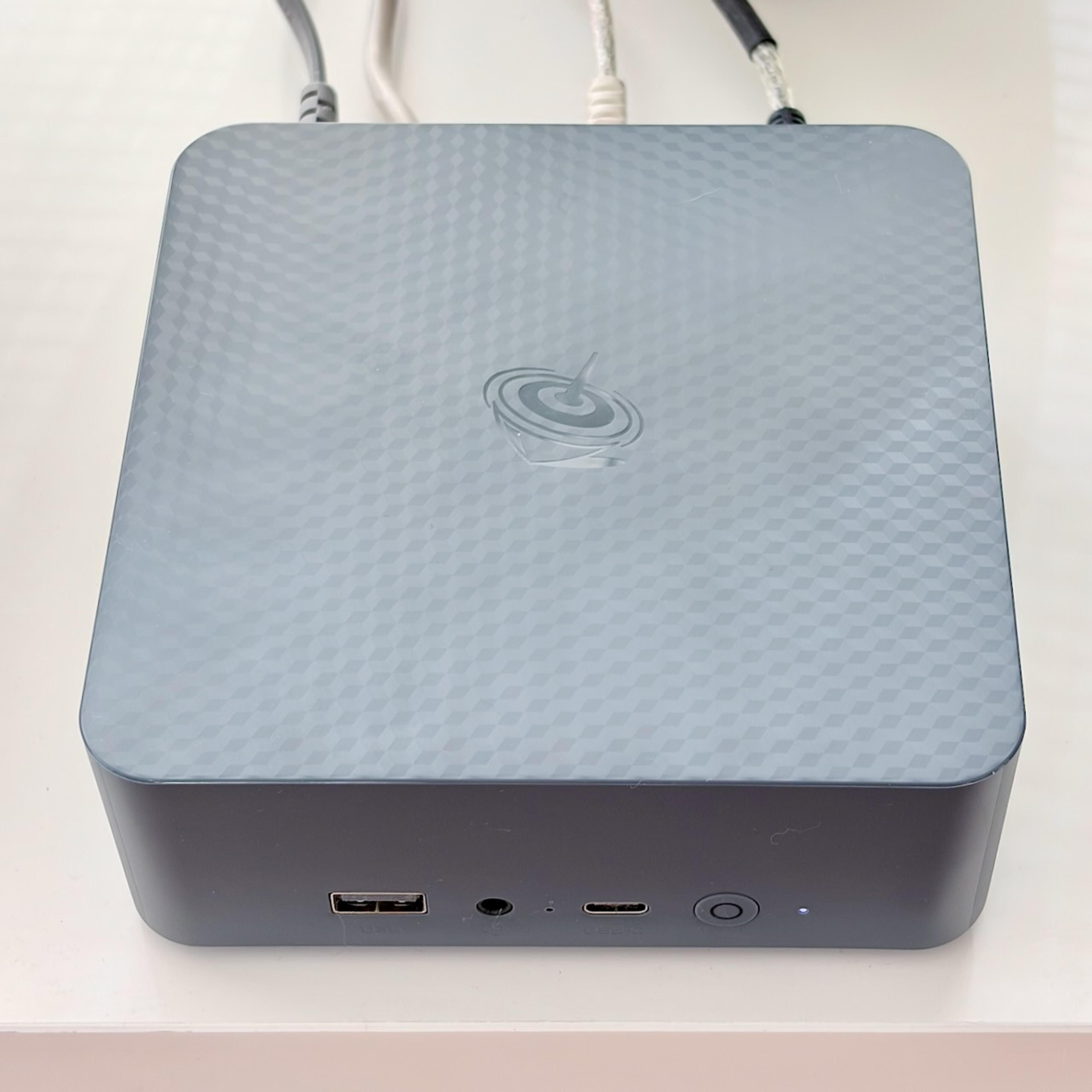
Picking the right hardware would've normally meant days of searching reviews and comparing options. With the Kiro CLI web search tool, it took about an hour. After reviewing Kiro’s pros & cons report, I decided to go for a Beelink mini PC with an i3 chip capable of media streaming and transcoding. The Beelink is about the size of a thick sandwich, silent, and cheap to run. It sits on a shelf with a couple of external USB drives plugged in. One for media storage, one for backups.
Starting from scratch
The first step was just figuring out where to begin with the server wiped clean. I knew I wanted to use free & Open Source software tools for this project. There are hundreds of options for every piece of this puzzle, and most of the online documentation assumes you already know what you're doing. I didn’t.
For each feature I wanted to add, the conversation with Kiro followed smoothly. I'd describe what I was trying to accomplish in plain terms, and we'd work through the right approach together:
- What's the best way to stream purchased media from a hard drive at home?
- What's are the pros and cons between these options?
- What do I need to set up first?
- How do I keep this setup secure and resilient?
What could’ve taken me hours of reading Reddit threads and forum posts turned into a fluent conversation. I was remotely logging into the server (via SSH) and Kiro was using the web to research forums, execute terminal commands, install software, set configurations and test the setup.
Incremental feature building
What made this project fun was that I worked on it when I had free time. Kiro CLI made it easy to add features over time with its built-in memory through knowledge bases. We incrementally added these with zero stress:
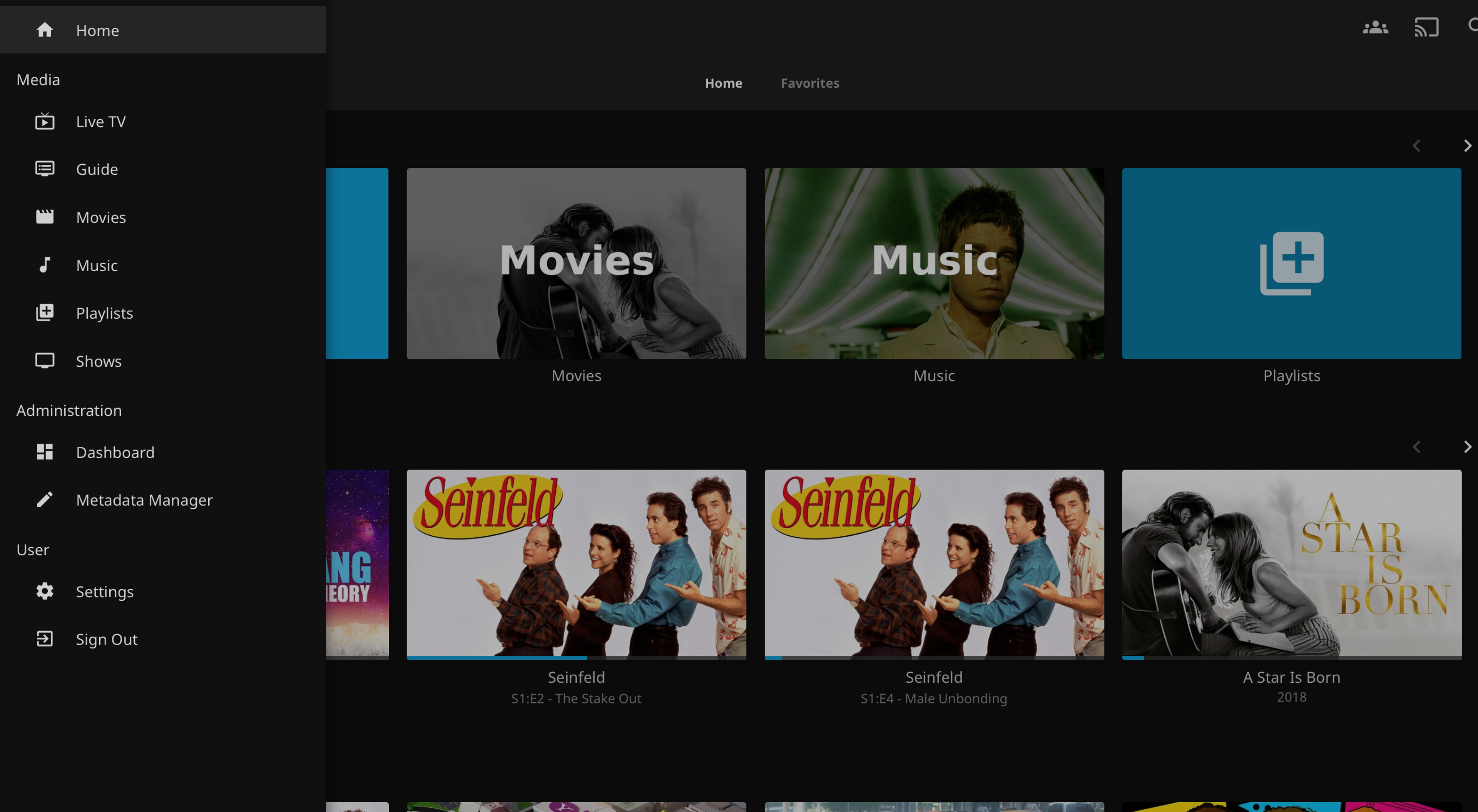
Jellyfin to stream my purchased media collection — This Open Source media server can stream Movies, TV Shows and Music in your home network or over the internet. To enable streaming over the internet, Kiro helped me set up the necessary infrastructure installing a reverse proxy, security certificates and networking rules.
File storage with Nextcloud — A free self-hosted alternative to Dropbox to store files on the Beelink server and sync them across devices. I asked Kiro to secure it with two-factor authentication.
Ad blocking on my home network with Pi-hole — Every device on my home network gets ads blocked automatically, without installing anything on individual devices. It covers phones, tablets, TVs, game consoles, etc.
Extending Smart home capabilities with Homebridge — Enables non-Apple smart home devices to be compatible with Apple's HomeKit ecosystem. Devices that were never designed to work with iPhones now show up in my Apple Home app.
Printing from mobile devices — Enables Apple’s Air Print in my home network with an old Wi-Fi printer that didn’t support it. The solution involved some networking concepts I'd never heard of before. Kiro solved it step by step.
Laptop backups — Macs on the network have access to the USB drive connected to Beelink and can back up automatically via Time Machine.
Security — Every service that needs public access goes through a secure gateway with security certificates. Kiro enabled automatic blocking of repeated failed login attempts. Strict rules about what's exposed to the internet and what is LAN-only were enforced.
The learning process
It’s worth noting that no feature was implemented with a one-shot prompt. There was always a speed bump: a setting that didn't match what the software expected, two services that conflicted with each other, something that worked fine until a restart, etc.
The traditional way of debugging would’ve been:
- Search for the error message
- Try to understand what it means
- Search the web for answers or read the docs
- Try a fix
- Fail and try again & again until it works, maybe?
- Actually, nothing works… I’m walking away from this project
With an AI CLI tool that acts like a sysadmin assistant, the work gets easier:
- The agent deploys a configuration or installs software
- Monitors logs & outputs
- Catches errors and understands what is broken
- Searches the web for answers if necessary
- Tries a fix, monitors for errors, and iterates until the solution works
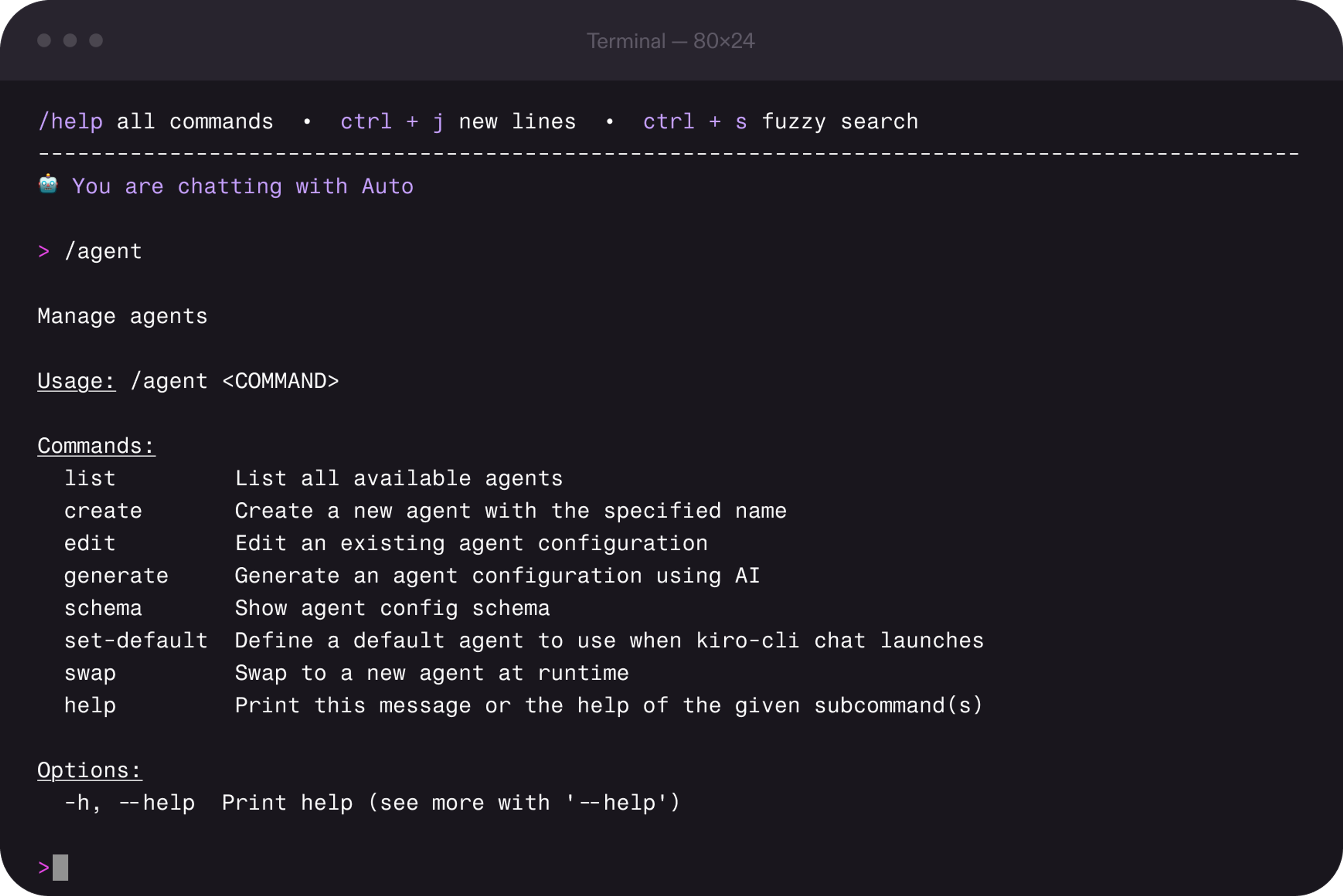
This whole setup process was way more enjoyable with an AI assistant doing all the heavy lifting. My role focused on steering, making decisions between tradeoffs, validating the end product is up to expectations, and making sure security, resilience & performance are part of the process.

